

Overview
The Supadata MCP (Model Context Protocol) server enables powerful web and video scraping capabilities directly within AI assistants and development environments like Claude, Cursor, and VS Code. This open-source integration allows AI models to extract transcripts, scrape web pages, and crawl entire websites to gather context.Features
- Multi-Platform Support: Works with YouTube, TikTok, Instagram, Twitter, Facebook, and more
- AI-First Design: Optimized for use with LLMs and AI assistants
- Multiple Tools: Transcript extraction, web scraping, site mapping, and crawling
- Easy Integration: Simple setup with popular AI tools
Available tools
Tools use your regular Supadata credits at the same prices as the API. A native transcript costs 1 credit, but an AI-generated transcript costs 2 credits per minute of video — a single 50-minute video uses the free plan’s 100 monthly credits. Checking job status is free. See transcript pricing.
Hosted server vs. local server
There are two ways to connect:- Hosted server at
https://api.supadata.ai/mcp— uses OAuth. You sign in with your Supadata account when the client prompts you; no API key is needed. Use this with Claude (from the connectors directory), Claude Code and ChatGPT. - Local server via
npx -y @supadata/mcp— runs on your machine and authenticates with your API key passed as theSUPADATA_API_KEYenvironment variable. Use this with Cursor, Windsurf, VS Code and other stdio-based clients.
Installation
Manual Installation
Integration Setup
Claude / Claude Desktop / Cowork
Supadata is listed in the Claude connectors directory, so you can connect without a URL or an API key. The same connection works in Claude on the web, Claude Desktop, Claude mobile and Cowork.- Open Customize → Connectors in Claude
- Search for Supadata and click Connect
- Sign in with your Supadata account and click Authorize to grant MCP access
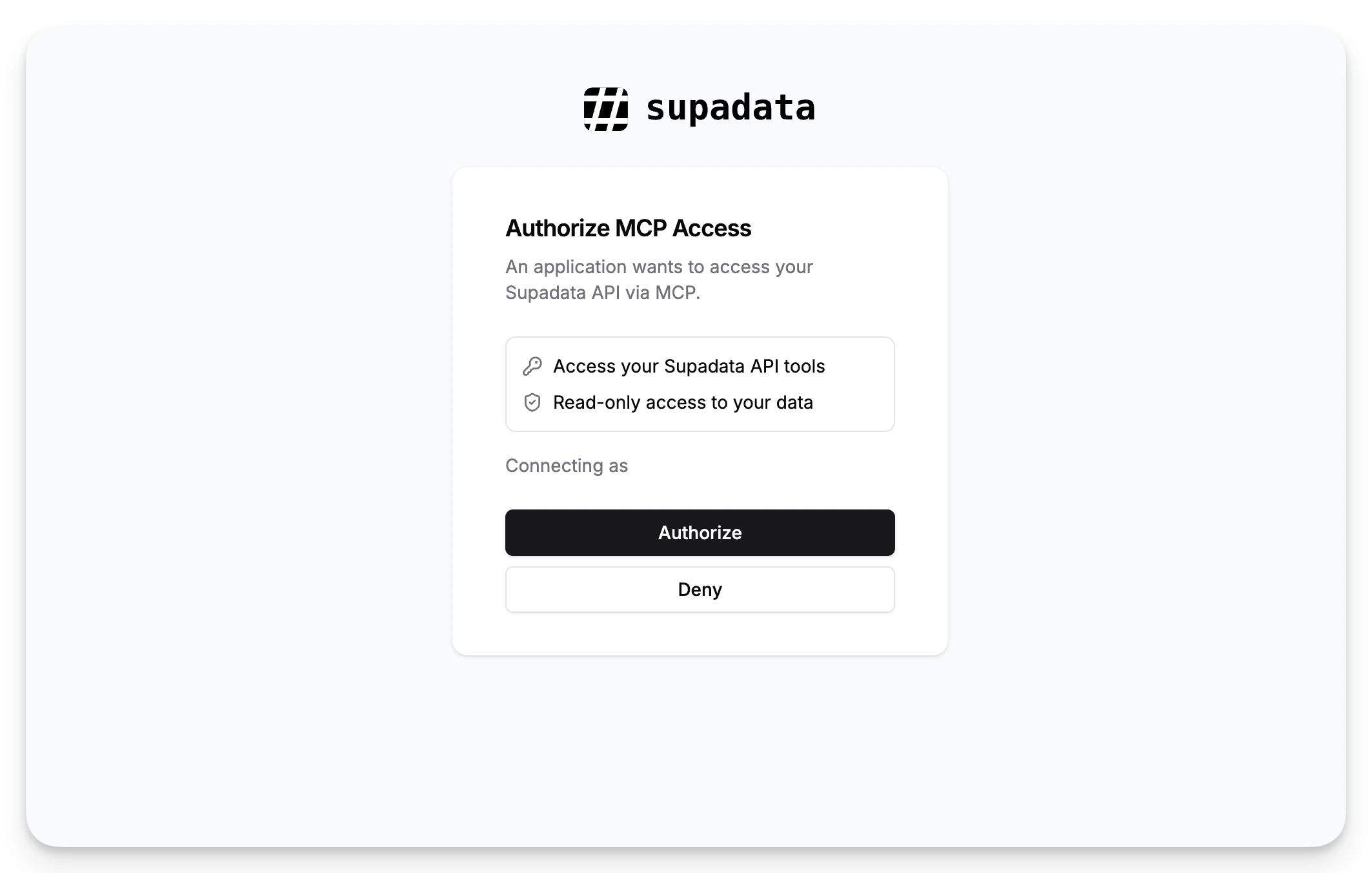
Adding Supadata as a custom connector instead
Adding Supadata as a custom connector instead
If you added Supadata earlier with Add custom connector and the URL 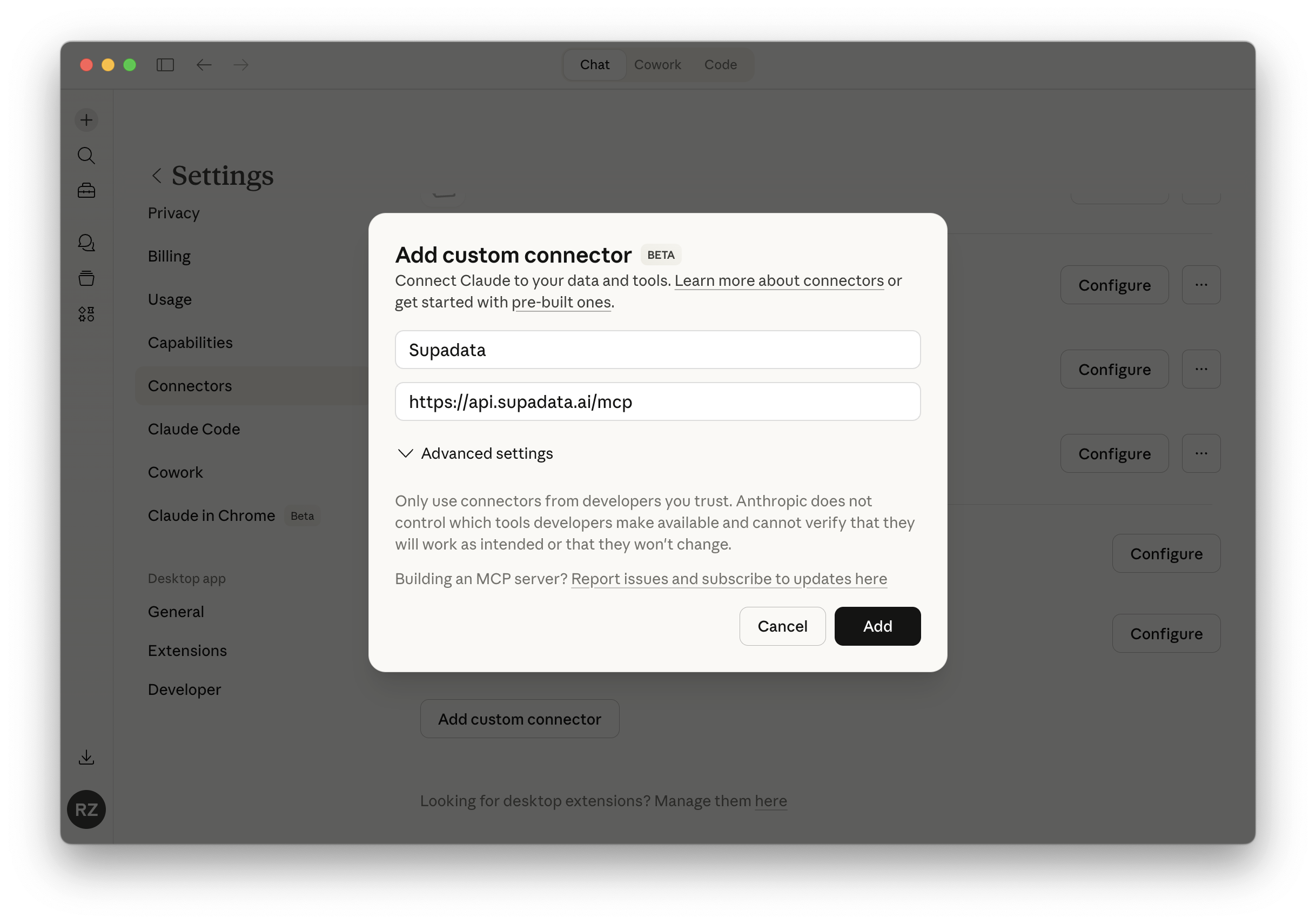
https://api.supadata.ai/mcp, that connection keeps working and shows under Custom in Claude’s connector settings. To switch to the directory listing, remove the custom connector and connect Supadata from the directory; otherwise you end up with two Supadata connections.Claude Code
- Add the Supadata MCP server:
- Run
/mcpin Claude Code and select Authenticate for Supadata to complete the OAuth flow in your browser.
ChatGPT
- Go to Settings → Apps & Connectors
- Click Create to add a new connector
- Enter
Supadataas the name andhttps://api.supadata.ai/mcpas the connector URL - Click Save
Cursor
- Open Cursor Settings
- Navigate to MCPs & Integrations → New MCP Server
- Add new MCP server:
Windsurf
Add to~/.codeium/windsurf/mcp_config.json:
VS Code
Add a.vscode/mcp.json file to your workspace. VS Code will prompt for your API key the first time the server starts:
Configuration
Environment Variables
SUPADATA_API_KEY: Your Supadata API key (required for the localnpxserver; not needed for the hosted OAuth server)